
A blog to help electrical engineers and students to learn electrical engineering topics. Basic Electrical Engineering, Power Systems, Electrical Machines, tec.. Now special course on MATLAB for Beginners.

Class

Class

Saturday, March 12, 2016

Graphics in MATLAB - Basics


Introduction

Graphical representation of problems is very important in engineering problem solving. Plotting the results usually leads to additional insight into the nature of the problem.  So plotting is an important element to use and become skilled at using with MATLAB.
MATLAB has an excellent set of graphic tools.  Plotting a given data set or the results of computation is possible with very few commands.  You may need multiple plots to occur in a single window, or multiple windows to plot your functions.  You will be able to label the axis, label the graph, choose colors and symbols for the plot, or use the default axis and colors.  If you have created a plot, and then enter a second plot command, the first plot will be overwritten unless you type some special commands to keep the current plot or create a second Graphics Window.

Basic Plotting

The MATLAB command to plot a graph is plot(x,y). A graphics window with a plot of vector y versus vector x appears in response to this command. For each element of vector x, a y value must me defined (both x and y are either row vector s or column vector s of the same length).

Example
>>x=linspace(0,4*pi,100);
>>y=sin(x);
>>plot(x,y)
Figure 1 Plot for the vectors x and y=sin(x)

If y is a vector, plot(y) produces a piecewise linear graph of the elements of y versus the index of the elements of y. (In this example there are 100 elements in the vector y)
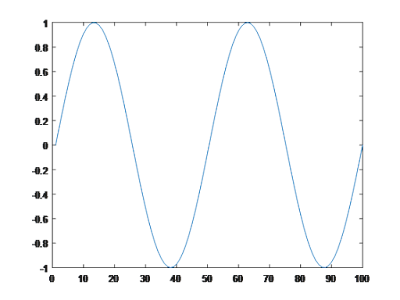
Figure 2: Plot for the vector y

The Plot Command

The syntax for linear plot command is
plot (x, y, ‘color style marker’, ‘PropertyName’, PropertyValue )

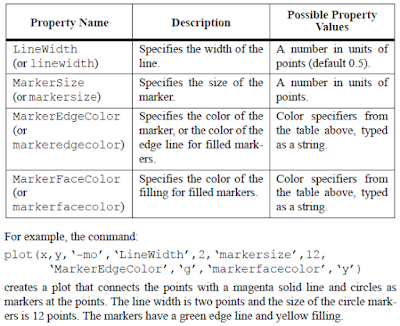
The color, style and marker values are optional to define the properties of the line. The color of a single curve is, by default, blue. If required these properties are typed inside a single quote. The letters used to define each property is given Table 1 below. Also the PropertyName and PropertyValue parameters are optional and are used to specify the line width, marker size and edge, fill color, etc. First type property name in quote marks and type the value after a comma. The list of available properties is given in Table 2.

Table 1 - Color Marker Style Properties and Codes
 

Table 2 - Other Plot Properties
Example
>> plot(x,y,'mx:')
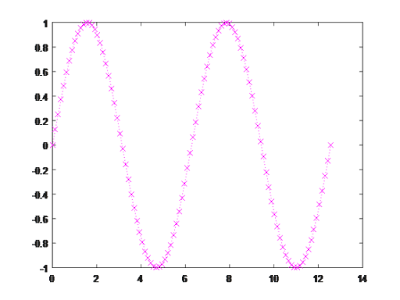
Figure 3 - Plot with Color-Magenta, Marker-x and style dotted

>> plot(x,y,'gh-.')
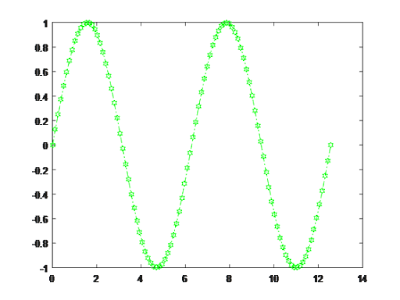
Figure 4 - Plot with Color-Green, Marker-hexagon and style dash-dot

Adding Title, Axis Label, Legend,…

Title, labels, etc. can be easily added to the plot using simple commands. The common commands are listed below.
X-axis label.
 xlabel('text') adds text beside the X-axis on the current plot.

Y-axis label.
ylabel('text') adds text beside the Y-axis on the current plot.

TITLE
title('Some text') writes title above plot

TEXT
text(x,y,'Some text') places text in figure with first character at (x,y)

LEGEND
legend('text1','text2',...) writes legend - For each graph (data set) displays short line in same style as graph line and adds specified text.

Example
>> x=linspace(0,4*pi,100);
>> y=sin(x);
>> plot(x,y)
>> xlabel('x (secs)')
>> ylabel('sin(x)')
>> title('plot of sine function')
>> text(pi,0,'zero crossing')
>> legend('sine')
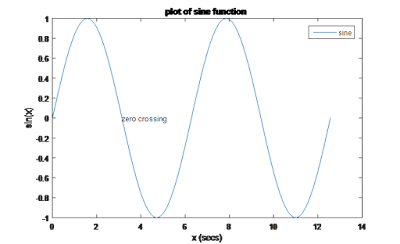
Figure 5. Plot with title and labels

Plot Two or More Curves on Same Window

More than one plot can be drawn on the same figure window.  This can be done in different ways. 

The hold command can be used to keep the existing graph and draw a new curve on the same figure window.
hold on  - holds the current plot and all axis properties so that subsequent graphing commands add to the existing graph.
hold off  - returns to the default mode
hold - toggles the hold state.

Example
>> t=linspace(0,2*pi,100);
>> x= sin(t);
>> y= cos(t);
>> z= tan(t);
>> plot (t,x)
>> hold on
>> plot(t,y)
>> legend('sine','cose')
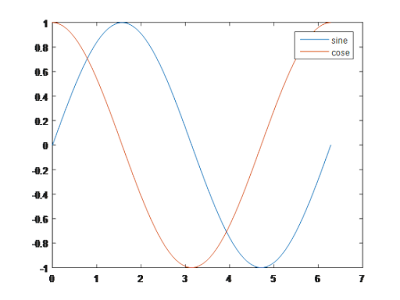
Figure 6 Multiple plots using HOLD command

Multiple (x, y) pairs arguments can create multiple graphs with a single call to plot.
plot(x, y, u, v, t, h) plots y vs. x, v vs. u, h vs. t. Vectors of each pair must be same size but can be different than sizes in other pairs.

Example
The curves in the previous example can be plot by
>> plot(t,x,'-b', t,y,'--r',t,z,'g:')
>> xlabel ('time')
>> ylabel('trignemetric functions')
>> title('Multiple curves in a plot')
>> legend('sine(t)','cose(t)','tan(t)/10')
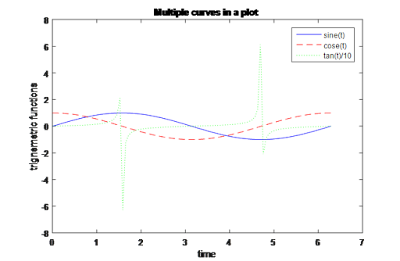
Figure 7. Typical example of multiple plots using single plot command

Line(x,y) command adds additional lines in vectors x and y to an existing plot. The x,y pair can be followed by parameter/value pairs to specify additional properties of the lines.
line(x,y,'PropertyName','PropertyValue')

Example
>> plot (t,x)
>> line(t,y)
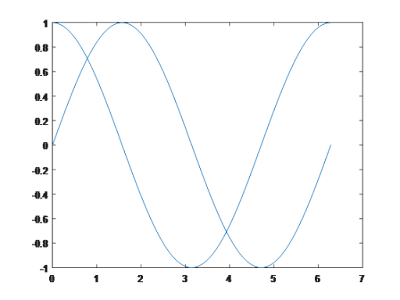
Figure 8. Example of use of line command (Note: line command use the default color if not specified)

subplot(m, n, p)  command can be used to break the figure window into an m-by-n matrix of small axes and draw different curves in each section  specified by third argument p.

Example
>> x=-10:10;y=x;z=x.^2;s=x.^3;k=10.^x;  
>> subplot(2,2,1), plot(x, y)
>> subplot(2,2,2), plot(x, z)
>> subplot(2,2,3), plot(x, s)
>> subplot(2,2,4), plot(x, k)
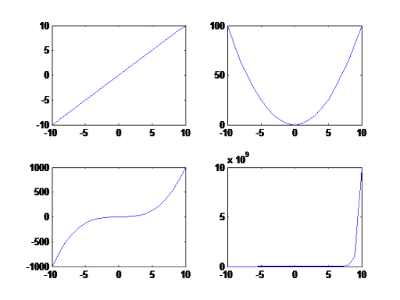
Figure 9. Subplot example


Saturday, March 5, 2016

Managing Strings in MATLAB


Introduction

A string is an array of characters. A character string can be created in MATLAB using single quotes ('). The assignment operator is used to assign the string to a variable. For example,
>> a = 'Electrical'
a =
          Electrical
MATLAB will consider this as a 1-by-10 character array. A string can have letters, digits, symbols, spaces. To type single quote in string, use two consecutive single quotes.
Examples:  'aB  ef', '3%fr2', 'abcd:21!', 'MATLAB', 'Allen''s book'
A one line string will be considered as a row vector. If the string contain numbers, that also will be considered as characters. Number of elements in vector is number of characters in the string.
>> b = 'Electrical Engineering';
>> size(b)
ans =
          1 22
Color in code in editor
When you start type a string with a single quote it is colored maroon. When you complete the string with the closing quotation mark ('), it becomes purple.

Strings with Multiple Lines

A MATLAB variable can store strings with multiple lines as an array. This can be done similar the way we enter the matrices. The strings are entered in the square matrix and each string is separated by semi colon (;), but each line must have the same number of characters. If the lengths are not same, the remaining space must be padded with extra characters (usually spaces) to match with the longest string before closing the single quote.
>> c = [ 'Electrical'; 'Engineering' ]
??? Error using ==> vertcat
CAT arguments dimensions are not consistent.
>> c=[ 'Electrical '; 'Engineering' ]
c =
Electrical
Engineering
>> size(c )
ans =
          2 11
We can use ‘char’ function, which pads each line on the right with enough spaces so that all lines have the same number of characters
char('string 1', 'string 2', 'string 3')

Concatenation

Concatenation with square brackets joins text variables together into larger strings. The statement below joins two strings horizontally
a= 'Electrical'
d = [a, ' Engineering']     % note the space before E, used for space between the words. If space is not required don’t put the space.
d =
Electrical Engineering
The statement below joins the strings vertically
>> e = [a,' '; 'Engineering']
e =
Electrical
Engineering
Note the blank (‘ ‘) inserted after a, before the semi-colon. This space is important to make both strings have the same length.
The ‘char’ function can be used for vertical concatenation also.
>> f=char('Electrical', 'Engineering', 'Tutorial')
f =
Electrical
Engineering
Tutorial 
First and third rows above have enough space characters added on ends to make each row 11 characters long

Indexing in String

Strings are indexed the same way as vectors and matrices
•      Can read by index
•      Can write by index
•      Can delete by index
Consider the string a='Electrical',
>> a(1)
ans = E
>> a(7:end)
ans = ical
>> a(7) =’o’
a =
Electrocal
>> a(8:end) = []
a=
          Electro
>> a(end+1:end+4) = 'nics'
a =
Electronics

String Comparison

There are several ways to compare strings and substrings:
  • You can compare two strings, or parts of two strings, for equality.
  •  You can compare individual characters in two strings for equality.
  • You can categorize every element within a string, determining whether each element is a character or white space.

strcmp is the function for comparing strings for equality. strncmp determines if the first n characters of two strings are identical. strcmpi function compares the strings without sensitivity to letter case.
Syntax is
x = strcmp('str1', 'str2')
x = strcmp('str', C)

strcmp('str1', 'str2') compares the strings str1 and str2 and returns logical 1 (true) if they are identical, and returns logical 0 (false) otherwise. str1 and str2 can be character arrays of any dimension, but strcmp does not return true unless the sizes of both arrays are equal, and the contents of the two arrays are the same.

strcmp('str', C) compares string str to the each element of cell array C, where str is a character vector (or a 1-by-1 cell array) and C is a cell array of strings. The function returns a logical array that is the same size as C and contains logical 1 (true) for those elements of C that are a match, and logical 0 (false) for those elements that are not. The order of the first two input arguments is not important.
Examples
strcmp('Electrical', 'Electrical')
ans =
     1
strcmp('Electrical', 'Electronics')
ans =
     0
g = {'Electrical';'Engineering'};
h = {'Electronic';'Engineering'};
strcmp(g, h)
ans =
    0 
1        

Other Function on Strings

char
char(x) converts the array x that contains nonnegative integers representing character codes into a character array. Char function is used to vertically concatenate the strings.

lower
lower('str') is used to convert any uppercase characters in str to the corresponding lowercase characters leaving all other characters unchanged.
>> lower('Electrical Engineering')
ans =
electrical engineering

upper
upper('str') is used to convert any lowercase characters in str to the corresponding uppercase characters leaving all other characters unchanged.
>> upper('Electrical Engineering')
ans =
ELECTRICAL ENGINEERING

blanks         Create a string of blank characters
  
mat2str - convert matrix to string
str = mat2str(A) converts matrix A into a string
str = mat2str(A,n) converts matrix A using n digits of precision.

str2num – convert ASCII character to corresponding numeric value also converts string matrices to numeric matrices.
x = str2num('str') converts the string str (ASCII character representation of a numeric value) to numeric representation.

Functions for identifying parts of strings

ischar          Determine whether item is character array
isletter         Array elements that are alphabetic letters
isspace        Array elements that are space characters


Saturday, February 20, 2016

Operations on Matrices and Arrays - MATLAB


Arithmetic operations of scalars are discussed in previous post. Now we will discuss about operations of matrices. All the basic operations on matrices, addition, subtraction, multiplication, division, and exponentiation, can be done in MATLAB. Operations other than addition and subtraction are done in two ways, one way, uses the standard symbols (*, /, and ^) where normal matrix operations are performed and the second way, which is called element-by-element operations, use a period typed in front of the standard operation symbol. There is an additional Matlab operator for matrices called left division operators (.\ or \).

Addition and Subtraction

Matrix addition can be accomplished only if the matrices to be added have the same dimensions for rows and columns.  If A and B are two matrices of the same size, then the sum A+B is the matrix obtained by adding the corresponding entries in A and B.
If A and B are matrices with the same size, then the difference between A and B denoted A-B is the matrix defined by subtracting the corresponding entries in B from A.
A scalar may be added to a matrix of any dimension.  When add/subtract a scalar to an array, MATLAB adds / subtracts the scalar to every element of the array. If A is a matrix, the expression A+n is evaluated by adding n to each element of A.

Examples:

 >> A = [5 1; 0 9];
>> B = [2 –2; 1 1];
>> A + B
ans =
     7    –1
     1    10
>> A – B
ans =
     3     3
    –1     8 

Matrix Multiplication

The multiplication operation * is executed by MATLAB according to the rules of linear algebra. This means that if A and B are two matrices, the operation A*B can be carried out only if the number of columns in matrix A is equal to the number of rows in matrix B. Such matrices are said to be conformable. Remember that the matrix multiplication is not commutative, i.e., A*B≠B*A (order of multiplication is important). A matrix of any dimension can be multiplied with a scalar. Each element in the matrix is multiplied by the scalar.
There are two ways of multiplying matrices – matrix multiplication and element wise multiplication. For element wise multiplication both matrices must be of same dimension.

Examples

>> A = [1 2; 3 4]
>> B = [0 1/2; 1 -1/2];
>> C = [1 0];

Matrix Multiplication
>> A*B
ans =
     0    16
     2    36
>> B*A
ans =
    14    20
    17    22
>> A*C
??? Error using ==> mtimes
Inner matrix dimensions must agree.

Element wise Multiplication
>> D = A .* B
D =
   0  1
   3 -2
>> A .* C
??? Error using ==> times
Matrix dimensions must agree.

Multiplication with scalar
>> A = [–2 2; 4 1];
>> C = 2*A
C =
    –4     4
     8     2 

Multiplication of two vectors

For multiplication of vectors, they must both be of the same size. One must be a row vector and the other a column vector.
If the row vector is on the left, the product is a scalar. If the row vector is on the right, the product is a square matrix whose side is the same size as the vectors

Example:

>> h = [ 2 4 6 ]
h =
     2     4     6
>> v = [ -1 0 1 ]'
v =
    -1
     0
     1
>> h * v
ans =
     4
>> v * h
ans =
    -2    -4    -6
     0     0     0
     2     4     6

dot product and cross product of vectors

Consider two vectors, X=[x1 x2] and Y = [y1 y2]. The inner product or dot product is defined as X.Y= x1* y1 +x2*y2 = |X|*|Y|*cos( ø). Another important operation involving vectors is the cross product. It is defined as XxY= |X|*|Y|*sin( ø).  In MATLAB, the dot product of two vectors A, B can be calculated using the dot(A,B) command. Cross(A,B) is used to compute the cross product.
>> a = [1;4;7]; b = [2;–1;5];
>> c = dot(a,b)
c =
    33
The dot product can be used to calculate the magnitude of a vector. All that needs to be done is to pass the same vector to both arguments. Consider the vector:
>> J = [0; 3; 4];
Calling dot we obtain:
>> dot(J,J)
ans =
    25
>> A = [1 2 3]; B = [2 3 4];
>> C = cross(A,B)
C =
    –1     2    –1

Matrix Division

The division operation is also associated with the rules of linear algebra. There are two types of division in Matlab - Right division and Left division. Right division performs the normal algebraic division of matrices. It can be used for solving the linear equations of the form XA=B. The solution of the equation is given by X=B/A.
Left division, \, is one of MATLAB's two kinds of array division. This type of division is used to solve the matrix equation AX=B,  A is a square matrix, X and B are column vectors. Solution of the system of equation is given by X = A \ B (Equivalent to inv(A)*B).
Left division is
• 2-3 times faster
• Often produces smaller error than inv()
• Sometimes inv()can produce erroneous results

Example

>> A = [1 2; 3 4];
>> B = [0 1/2; 1 -1/2];
>> A/B
ans =
     5     1
    11     3
>> A\B
ans =
    1.0000   -1.5000
   -0.5000    1.0000
>> A./B
ans =
   Inf     4
     3    -8
>> A.\B
ans =
         0         0.2500
    0.3333   -0.1250

Vector division
>> A = [2 4 6 8]; B = [2 2 3 1];
>> A/B
ans =
    2.1111
>> C = A./B
C =
     1     2     2     8
>> C = A.\B
C =
    1.0000    0.5000    0.5000    0.1250

Power of a Matrix

^ Operator is used to find the power of a matrix. The element wise operation also can be performed.
>> B = [2 4; –1 6]
B =
     2     4
    –1     6
>> B^2
ans =
     0    32
    -8    32
>> B.^2
ans =
     4    16

     1    36

Saturday, February 13, 2016

Indexing and Extracting a Sub-Matrix - MATLAB


Array Indexing

Each element in a array (matrix) has an address called index. Index of an element is its position in the array. The index for nth element in a vector x, is x(n). There are two ways to index a particular element in a matrix. The most common way is to specify row and column subscripts, such as, the element of row i and column j of the matrix A is denoted by A(i,j). The first index is the row number and the second index is the column number. For example, A(1,3) is an element of first row and third column. Another less common, but sometimes useful, is to use a single subscript, A(n), that traverses down each column in order.
We can access elements in array individually or in groups:
• Useful for changing subset of elements
• Useful for making new variable from subset of elements

Examples

Vector:
A = [0 1 2 3 4 5 6 7 8  9]
>> A(4)
ans = 3
>> A(6)=7
A = 0 1 2 3 4 7 6 7 8  9
>> A(3)+A(7)
ans = 8
>> A(4)^A(2)+sqrt(A(5))
ans = 13
Matrix:
B =  1    2     6     5
       4     3    7     2
      3     9     0     8
>> B(3,1)                              Element in row 3 and column 1
ans = 3
>> B(3,1)=0                         Assign new value to element in row 3 and column 1
B = 3    11     6     5
      4     7    10     2
     0     9     0     8
>> B(2,3) - B(1,2)
ans = 5

Using a Colon : in Addressing Arrays

The colon : lets you address a range of elements. The colon operator can also be used to pick out a certain row or column. For example, the statement A(m:n,k:l) specifies rows m to n and column k to l. Subscript expressions refer to portions of a matrix.

Vector (row or column) :
  • x(:) - all elements
  • x(m:n) - elements m through n
  • x(end) – the last element
Matrix
  • A(:,n) - all rows of column n
  • A(m,:) - all columns of row m
  • A(:,m:n) - all rows of columns m through n 
  • A(m:n,:) - all columns of rows m through n 
  • A(m:n,k:l) - columns k through l of rows m through n 
  • A(end,:) - picks out the last row of A. The keyword end, denotes the last index in the specified dimension

Examples:

A = [1 2 3; 4 5 6; 7 8  9]
 >> A(3,:)     % extract the 3rd row
ans =
  7 8 9
 >> A(:,2)     % extract the 2nd column
ans =
2
5
8
>> A([1,3],1:2)    % extract 1st and 2nd  elements of 1st and 3rd row
ans =
1   2
7   8
To extract a submatrix B consisting of rows 2 and 3 and columns 1 and 2 of the matrix A, do the
following 
>> B = A([2 3],[1 2]) 
B  =
4  5
7  8

It is important to note that the colon operator (:) stands for all columns or all rows. To create a
vector version of matrix A, do the following
>> A(:)
ans =
1
2
3
4
5
6
7
8
9
>>A(end,:)
7  8  9

More Examples

v = 4 7 10 13 16 19 22 25 28 31 34
>> u=v([3, 5, 7:10])
u = 10 16 22 25 28 31
>> u=v([3 5 7:10])
u = 10 16 22 25 28 31
z = 1 2 3 4
>> z(5:7)=10:5:20
z = 1 2 3 4 10 15 20
>> z(10)=50
z = 1 2 3 4 10 15 20 0 0 50

>> A=[10:-1:4; ones(1,7); 2:2:14; zeros(1,7)]
A = 10     9     8     7     6     5     4
       1     1     1     1     1     1     1
       2     4     6     8    10    12    14
       0     0     0     0     0     0     0

>> B=A([1 3],[1 3 5:7])
B = 10     8     6     5     4
       2     6    10    12    14

Adding and Deleting Elements

Indexing can be used to add and delete elements from a matrix. An assignment operator can be used to add elements to add elements to an existing array. For example,
>> A(5,2) = 5  % assign 5 to the position (5,2)
A =
1  2  3
4  5  8
7  8  9
0  0  0
0  5  0
Two new rows are created and 2nd element in the 5th row is assigned number 5, and the uninitialized elements become zeros.
All elements in a row can be inserted as follows.
>> A(4,:) = [2, 1, 2]       % assign vector [2, 1, 2] to the 4th row of A
A =
1  2  3
4  5  8
7  8  9
2  1  2
0  5  0
Some selected elements in the array can be replaced as shown in the example below. Here the 1st and 3rd elements in the 5th row is replaced by:
>> A(5,[1,3]) = [4, 4]       % assign: A(5,1) = 4 and A(5,3) = 4
A =
1  2  3
4  5  8
7  8  9
2  1  2
4  5  4
To delete a row or column of a matrix, use the empty vector operator, [ ].
Note: Can’t delete single element in a row or column.
>>A(4,:) = [ ]  % will delete 4 th row
A =
1  2  3
4  5  8
7  8  9
4  5  4
A(:, 3) = [ ] % will delete 3 rd  column
A =
1  2
4  5
7  8 
4  5 
A(1,2) = [ ]
??? error  -
A =
 1 2 3
 4 5 6
 7 8 9
A(2:2:6) = [ ]  % will remove the indexed elements in the matrix and the remaining elements will be displayed as a vector
ans = 1 7 5 3 6 9

The indexing can be used to recreate the deleted elements of an array. A(3,:) = [ ] will delete the third row of matrix A.  To restore the third row, we use a technique for creating a matrix.
>> A = [A(1,:);A(2,:);[7 8 9]]
A =
 1 2 3
 4 5 6
7 8 9
Matrix A is now restored to its original form.

Concatenating Matrices

Matrix concatenation is the process of joining one or more matrices to make a new matrix. The brackets [] operator discussed earlier in this section serves not only as a matrix constructor, but also as the MATLAB concatenation operator. The expression C = [A B] horizontally concatenates matrices A and B. The expression C = [A; B] vertically concatenates them.  Can only append row vectors to row vectors and column vectors to column vectors
• If r1 and r2 are any row vectors,
r3 = [r1 r2] is a row vector whose left part is r1 and right part is r2
• If c1 and c2 are any column vectors,
c3 = [c1; c2] is a column vector whose top part is c1 and bottom part is c2
• If appending one matrix to right side of other matrix, both must have same number of rows

• If appending one matrix to bottom of other matrix, both must have same number of columns

Saturday, February 6, 2016

Arrays and Matrices in MATLAB


—
MATLAB treats all variables as matrices. For our purposes a matrix can be thought of as an array, in fact, that is how it is stored. —Vectors are special forms of matrices and contain only one row or one column. —Scalars are matrices with only one row and one column.

Creating Matrices

In MATLAB, a vector is created by assigning the elements of the vector to a variable. This can be done in several ways depending on the source of the information.
  • —Enter an explicit list of elements 
  • —Load matrices from external data files 
  • —Using built-in functions 
  • —Using own functions in M-files
—A matrix can be created in MATLAB by typing the elements (numbers) inside square brackets [ ]
>>matrix = [1 2 3 ; 4 5 6 ; 7 8 9]

First open the [ bracket. Then type the elements in a row with a space or a comma between the elements and then enter the semicolon (or press Enter) to move to the next row. Finally close the ] bracket.

Example:

—>> A = [2 -3 5; -1 4 5]
—A =
— 2 -3 5
— -1 4 5
—>> x = [1 4 7]
—x =
— 1 4 7
—>> x = [1; 4; 7]
—x =
— 1
— 4
— 7

The Colon Operator and linspace Command

The colon operator can be used to create a vector with constant spacing (the difference between the elements is the same). The syntax is 
>>x= first:step:last
A vector with n elements that are linearly (equally) spaced in which the first element is xi and the last element is xf can be created by typing the linspace command. The syntax is 
>>x = linspace(xi, xf, n)

Example:

>> x=[1:2:10]
x =
     1     3     5     7     9   (If the last numbers cannot be obtained by adding steps to first, then the last element in the vector will be the number that does not exceed last)

>> 2:5
ans =
    2   3   4   5 (If only the first and the last terms are typed then the default for the step is 1.)

>> -2:3
ans =
   -2   -1   0   1   2   3

>> 0.2:0.5:2.4
ans =
    0.2000 0.7000 1.2000 1.7000 2.2000

>> -3:3:10
ans =
    -3   0   3   6   9

>> 1.5:-0.5:-0.5     (negative step is also possible)
ans = 
     1.5000 1.0000 0.5000 0 -0.5000

>>f= linspace(0, 10, 5)
f =
         0    2.5000    5.0000    7.5000   10.0000     (5 elements, from 0 to 10)

>>f= linspace(0, 10)          (When the number of elements is omitted, the default is 100. 100 elements will be dispalyed)
f =
  Columns 1 through 10
         0    0.1010    0.2020    0.3030    0.4040 ............................................
......................Columns 91 through 100
    9.0909    9.1919    9.2929    9.3939    9.4949    9.5960    9.6970    9.7980    9.8990   10.0000

Builtin Functions to Generate Matrices

Some special matrices can be created by using builtin functions. zeros (r, c), ones (r, c), eye (n) and rand(r, c) are the commands used to create matrix of r rows and c columns.

  • zeros (r, c)  - create a matrix with all zeros
  • ones (r, c)   - create a matrix with all ones
  • eye (n)        - create a identity matrix
  • rand(r, c)    - create a matrix with random numbers

Examples:

>> A = ones(3,2)
A =
     1     1
     1     1
     1     1
>> B = zeros(3,4)
B =
     0     0     0     0
     0     0     0     0
     0     0     0     0
>> C = rand(2,5)
C =
    0.8147    0.1270    0.6324    0.2785    0.9575
    0.9058    0.9134    0.0975    0.5469    0.9649
>> D = eye(3)
D =
     1     0     0
     0     1     0
     0     0     1
>> E = magic(4) - Durer’s matrix
E =
    16     2     3    13
     5    11    10     8
     9     7     6    12
     4    14    15     1

Functions to Handle Matrices and Arrays

x = [1 2 3];
y= [1 2 3; 4 5 6];

length( ) - number of elements in a array. number of columns in a matrix
>>length(y)
ans =
     3
>>length(x)
ans =
     3

sum( ) –  Sum of elements in a array. Sum of elements in a column of a matrix.
>>sum(x)
ans =
     6
>>sum(y)
ans =
     5     7     9

‘   – Transpose of a matrix. Convert a row vector to column vector
>>y'
ans =
     1     4
     2     5
     3     6
>> x'
ans =
     1
     2
     3

diag( ) – diagonal elements of matrix. crate a matrix with elements of a vector,if the argument is a vector)
>>diag(y)
ans =
     1
     5
>>diag(x)
ans =
     1     0     0
     0     2     0
     0     0     3

—size( ) – size (dimensions) of matrix
>>size(y)
ans =
2 3 (2 rows, 3 columns) 

det( ) – determinant of a matrix. (matrix must be square to get determinant)
>> z= [1 2 3; 4 5 6; 7 8 0];
>> det (z)
ans =
    27

inv( ) – inverse of a square matrix
>> inv(z)
ans =
   -1.7778    0.8889   -0.1111
    1.5556   -0.7778    0.2222
   -0.1111    0.2222   -0.1111